
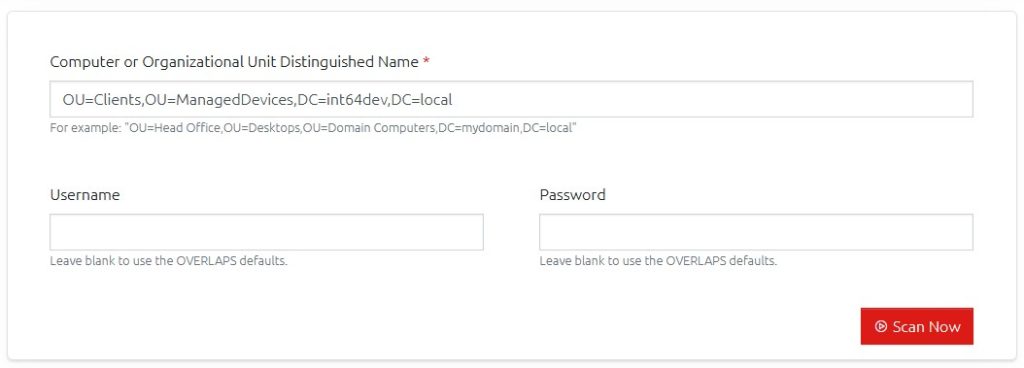
If you are having problems with OVERLAPS reporting that LAPS passwords are not set or cannot be retrieved, you can use this section to query a specific Organizational Unit for its LAPS permissions.
With the results, you should be looking either for the OVERLAPS server itself, or a group that the server belongs to, and checking that it has the required Read permission on the “ms-Mcs-AdmPwd” property and Read/Write permission on the “mc-Mcs-AdmPwdExpirationTime” property.
If you do not find this, then additional configuration is required to allow OVERLAPS to access the properties. For more information on this, see Active Directory Permissions.
The Username and Password fields are optional. Leaving them blank will make OVERLAPS carry out the scan using its own credentials, which is the best way for testing your permissions.
Scanning a Container
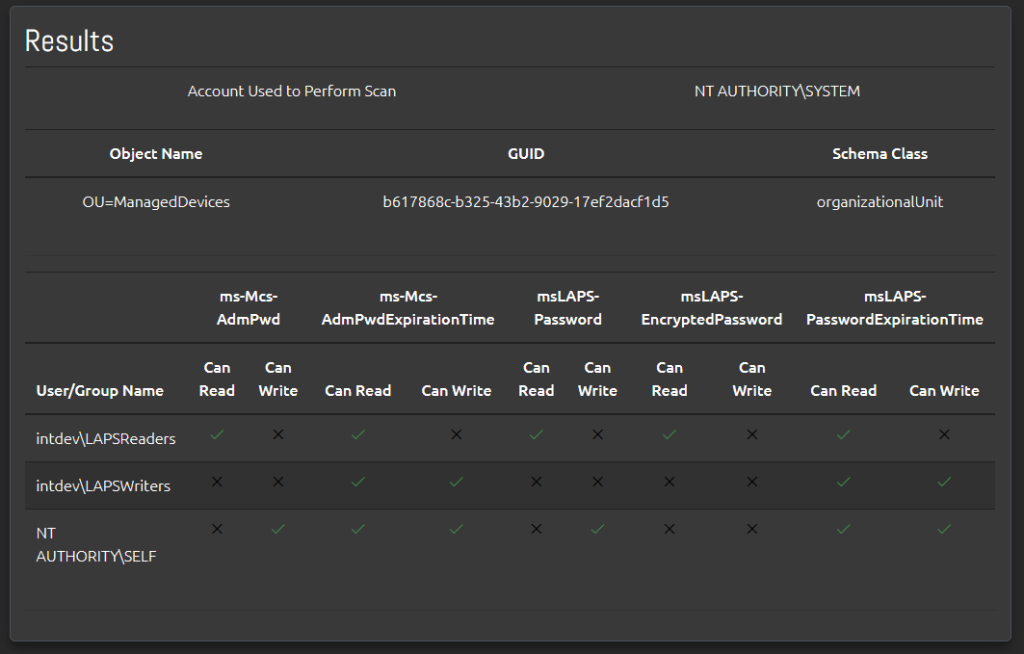
Running the scan on a Active Directory container will attempt to connect to the container object and find any LAPS-specific permissions set on it. Here you can see two groups have been setup with read/write permission to the various legacy LAPS and Windows LAPS attributes, and the third entry (“NT AUTHORITY\SELF”) is set by LAPS to allow computers to update their own password information.
Scanning a Computer
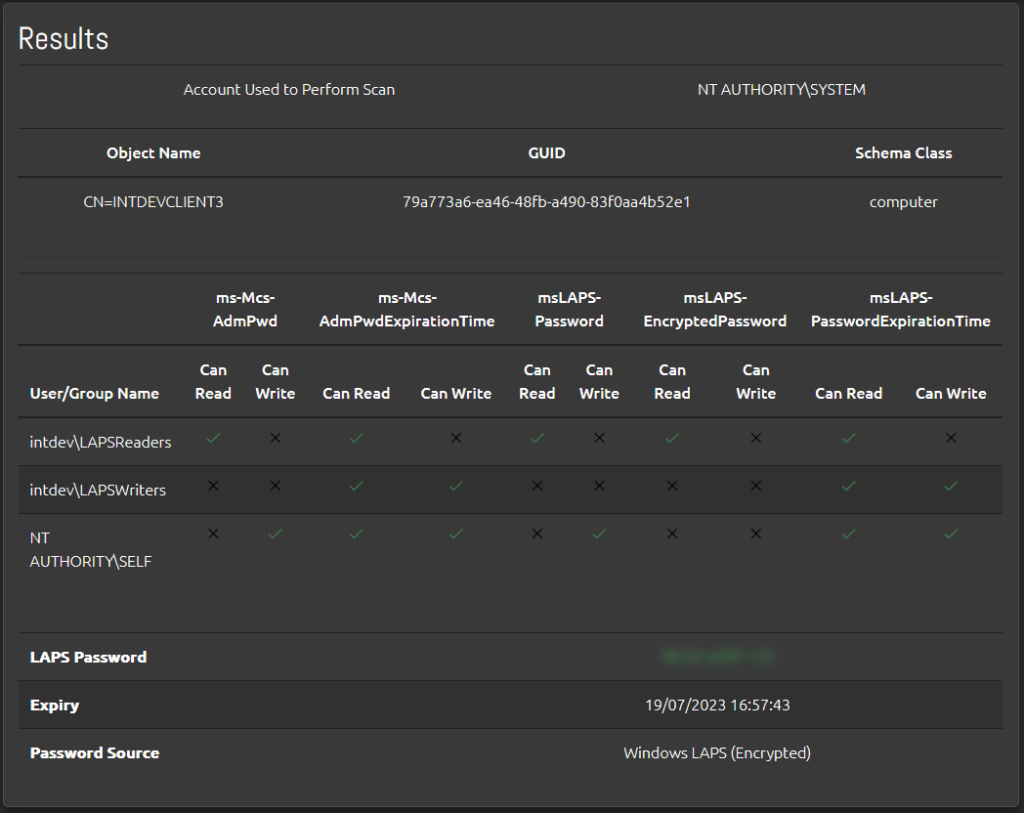
Running the scan on a specific computer instead will carry out the same tests as a Container scan, but will also attempt to read the LAPS password and expiry time. If this is successful then your permissions are setup correctly.
Note that the password is obscured automatically for security reasons, but as with bulk password retrieval you can reveal it by hovering your mouse over it or clicking on it.