
From the computer list you can click on a computer to display its LAPS managed Local Administrator password.
Trial versions will display the message TRIALVERSION instead of the actual password. However, the background work to retrieve the password is still carried out to help make sure that your configuration is correct and works with OVERLAPS prior to purchase.
Plain Text View
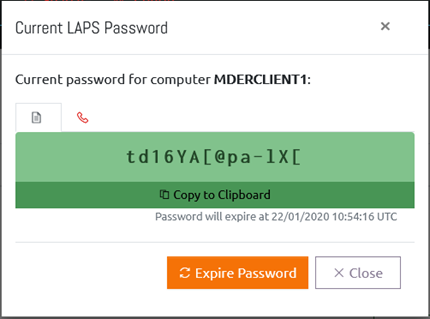
From this window you can click the “Copy to Clipboard” button to have the password copied to your system clipboard.
Phonetic Alphabet View
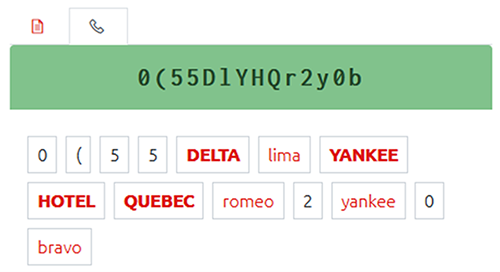
Clicking the telephone icon (shown below) switches the view to the Phonetic Alphabet view. There are several of these available (selected in the Config page, see Customisation), this example shows the short NATO alphabet. It is also possible to create your own phonetic alphabets, see here for details.

Password History
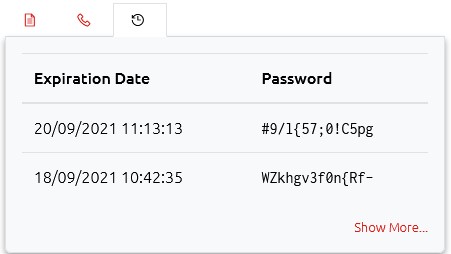
If enabled in Settings -> Logging and History, a recent history of this computer’s passwords will be shown in this tab for reference.
Note that this is currently separate from the Windows LAPS history feature.
Each entry shows a date, but note that this shows when the password was due to expire, not when it actually expired. So, if for example two passwords were shown:
| Expiration Date | Password |
|---|---|
| 2021-01-01 10:00:00 | Password#1 |
| 2021-02-01 11:00:00 | Password#2 |
We know that “Password#1” was expired some time around 10:00 on the 1st January, depending on Group Policy. We also know that between this time and 1st February it had been set to “Password#2”.
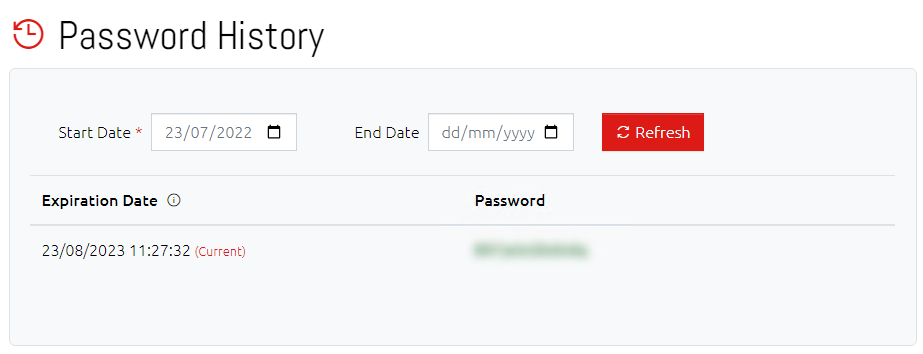
If the date you need isn’t shown, click the “Show More” link to be taken to the Password History page where you can specify the date range to show.
Expiring a Password
This has two modes of operation depending on your settings: immediate and specific date/time. By default, a user with the Expire Password permission using this function will cause the password expiry to be set in the past, thereby triggering a password reset on the computer at the next opportunity.
If the global Allow All Users to Specify an Expiry Date and Time setting has been enabled (see Password Reset Options), then all users with the Expire Password permission will instead be prompted to enter an expiry date and time.
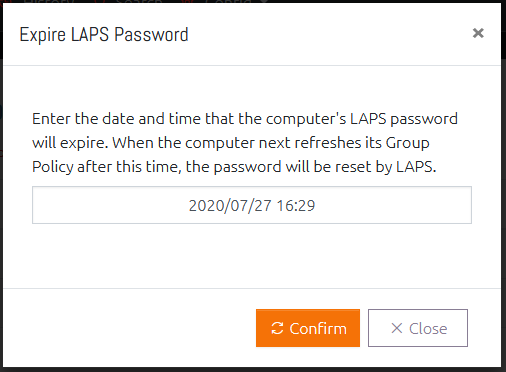
Alternatively, if you don’t want to set this for all users and would prefer to do it on a per-user/group basis, then you can change the “Set a Precise Expire Date & Time” setting to enabled on a user’s User Access Levels settings (see Changing User’s Access Levels).
Note that an expired LAPS managed password will only actually reset when the computer next performs a Group Policy update. You can use the Computer Management Tools to trigger this on demand if needed.