
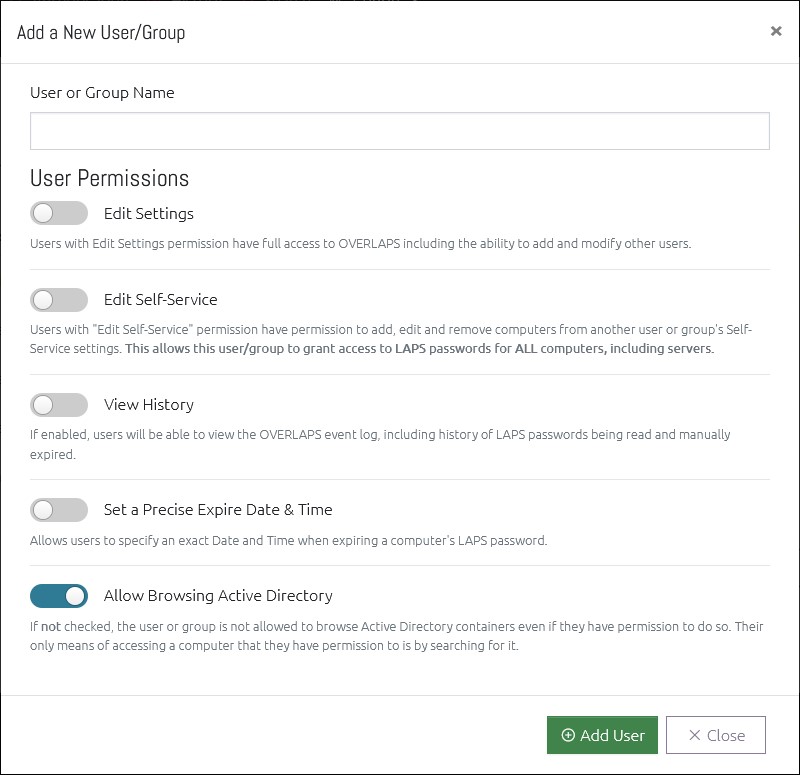
To add a user, click the New User/Group button, a window will appear allowing you to enter the user or group’s account (user) name.
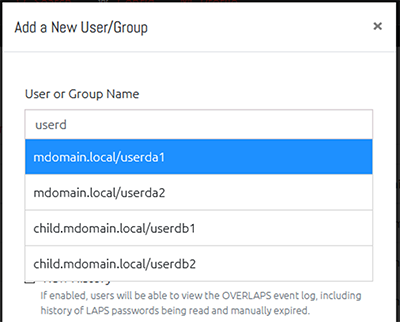
Start typing the username and OVERLAPS will search Active Directory for potential matches for you to select from.
Here you may also set the user or group’s site-wide permissions, which consist of:
Edit Settings
Users with this permission are full Administrators have permission to everything in OVERLAPS. They are the only ones who can add or remove users, grant permission to OUs, and change the various system settings.
Warning: This allows the user full access to everything in OVERLAPS, including the ability to grant access to the LAPS password of any computer in the domain, including servers, to any other domain user.
Edit Self-Service
Users with “Edit Self-Service” permission have permission to add, edit and remove computers from another user or group’s Self-Service settings. This allows this user/group to grant access to LAPS passwords for ALL computers, including servers.
View History
Users with the View History permission can access the History page and view a log of everything that other users are doing within OVERLAPS.
View Computer Reports
If enabled, users will be able to run Computer Reports such as retrieving a list of computers that don’t have a LAPS password.
Set a Precise Expire Date & Time
If enabled, this user/group can specify a date and time when expiring a computer’s password (instead of just expiring immediately).
Allow Browsing Active Directory
If not allowed, the user(s) is will not be able to browse Active Directory containers even if they have permission to do so. Their only means of accessing a computer that they have permission to is by searching for it.
Note that this is not required for users that don’t have OU-level permission to access computers (e.g. Self-Service users). It is only intended for situation where you want to grant access to all of the devices in one or more OUs, but only want them to access them through the Search form.
Enabling this for Self-Service-only users can cause unexpected outcomes such as showing a “permission denied” error when logging on rather than being taken directly to their owned devices.
Unless you have a very specific use-case for this feature, it is recommended to leave it Enabled.
Allow Viewing the Password of Deleted Devices
Requires View Computer Reports permission and the Password History feature to be enabled
If enabled, all devices that the user has permission to read passwords for (via OU permissions) will be accessible from the Password History report. This includes devices that have been deleted from Active Directory, so it can be useful for gaining access to devices which have dropped out of the domain for one reason or another.
Note that this setting is currently only available from the Edit User Access Levels window, not from the Add User window.