
Introduction
OVERLAPS requires access to the LAPS attributes in Active Directory in order to function. This guide assumes you are already familiar with the relevant PowerShell scripts provided by Microsoft for managing this and that you have already configured your computer’s Self permission (so that computers have permission to write their passwords to Active Directory). For more information on this, see:
- For Legacy LAPS, the LAPS_OperationsGuide.docx
- For Windows LAPS, see Use Windows LAPS PowerShell cmdlets
Microsoft Legacy LAPS Permissions
In order to view and expire the Legacy LAPS managed Local Administrator passwords, OVERLAPS requires the following permissions in Active Directory to the Organizational Units (containers) in which the managed computers reside:
Read ms-McsAdmPwd
Read ms-Mcs-AdmPwdExpirationTime
Write ms-Mcs-AdmPwdExpirationTime
Legacy Permissions Setup
Configuring these permissions manually can lead to unexpected behaviour, so it is recommended to make use of the PowerShell scripts that come with Microsoft LAPS.
As OVERLAPS runs as Local System on the host server by default, you will need the server’s computer account name to proceed unless you are using a designated Service Account (see Settings – Active Directory). This should be the name of the server followed by a dollar sign ($), so if the server is called “myoverlaps” for example, the computer account name would be “myoverlaps$”.
- Launch PowerShell using an account which has the necessary Active Directory modification permissions.
- Import the LAPS management module by typing:
Import-Module AdmPwd.PS - Grant read permission to the Local Administrator password property with the command:
Set-AdmPwdReadPasswordPermission -OrgUnit <Distinguished Name of the computer OU> -AllowedPrincipals <Account name> - Also grant write permission so that you can reset the password expiry time, forcing a reset when LAPS next runs on the client (on a Group Policy update):
Set-AdmPwdResetPasswordPermission -OrgUnit <Distinguished Name of the computer OU> -AllowedPrincipals <Account name> - Restart the OVERLAPS service to make sure it picks up the new permissions.
If everything went to plan, OVERLAPS will now be able to view and trigger a reset of the Local Administrator passwords. Be aware that, due to AD replication, the permissions may not apply immediately.
Microsoft Windows LAPS Permissions
The new Windows LAPS (which is designed to completely supersede the old product and is now delivered by default to compatible devices) comes with a new set of extensions to the Active Directory Schema to store the new password details.
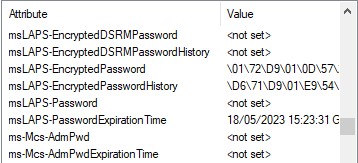
| Attribute | Description |
|---|---|
| msLAPS-EncryptedDSRMPassword | If enabled, and the computer is a Domain Controller, then this will contain the encrypted DSRM password. |
| msLAPS-EncryptedDSRMPasswordHistory | History for the above. |
| msLAPS-EncryptedPassword | If encryption is enabled, the encrypted password data will be stored here. If you’re planning to decrypt this manually, watch out for the prepended header information in the encrypted data. Once decrypted, this has the same JSON format as “msLAPS-Password”. |
| msLAPS-EncryptedPasswordHistory | History for the above. |
| msLAPS-Password | The unencrypted password if encryption isn’t enabled. This is stored in JSON format as shown in the example below: {“n”:”Administrator”,”t”:”1d96ex2d53551ee”,”p”:”password”} Where “n” represents the account name, “t” is the timestamp when the password was updated (in hex format), and “p” is the password. |
| msLAPS-PasswordExpirationTime | This is the date and time that the password is set to expire. It is stored as a 64bit integer in Windows File Time format using UTC as the time zone, the same as legacy LAPS did. |
New Windows LAPS Permissions Setup
Like the legacy LAPS, the new version comes with its own PowerShell module for managing permissions. To set them up for OVERLAPS, follow these steps:
- Launch PowerShell using an account which has the necessary Active Directory modification permissions.
- Grant read permission to the Local Administrator password property with the command (more info):
Set-LapsADReadPasswordPermission -Identity <Distinguished Name of the computer OU> -AllowedPrincipals <Account name> - Also grant write permission so that you can reset the password expiry time, forcing a reset when LAPS next runs on the client (on a Group Policy update) (more info):
Set-LapsADResetPasswordPermission -Identity <Distinguished Name of the computer OU> -AllowedPrincipals <Account name> - Restart the OVERLAPS service to make sure it picks up the new permissions.
As with the Legacy commands, if everything went to plan OVERLAPS will now be able to view and trigger a reset of the Local Administrator passwords. Be aware that, due to AD replication, the permissions may not apply immediately.
Reading Encrypted Passwords

If you have enabled Password Encryption in your Group Policy settings (Windows LAPS only), then in order to retrieve them using OVERLAPS it must be granted permission to do so.
This is done by adding the OVERLAPS server to the policy:
Computer Configuration -> Policies -> Administrative Templates -> System -> LAPS -> Configure authorized password decryptors
As this policy only accepts a single user entity, it is best to create a group for this setting and add any users (or in this case the OVERLAPS server) to that group. Note, however, that when you change this setting or add a new user, that user will only be able to read passwords that have reset after you make this change, this is because when the encryption occurs it ties it to the current value of this setting.
5.3.3.2.1 An Important Note About Separate Service Accounts
If you are using a Service Account in OVERLAPS instead of the default setup (see Active Directory Credentials) an important distinction needs to be made:
The Active Directory Access Service Account
This account, which is used to talk to AD, is the one that needs access to the LAPS attributes, it does not require permission to decrypt anything. This is the account that is used to get the encrypted passwords from AD.
The Account the OVERLAPS Service Runs As
This is the account that needs to be in the Authorized Password Decryptors setting or group. It receives the encrypted password from the above account and then decrypts it in memory.
| Account | Where it is Set | Example | What Permissions it Requires |
|---|---|---|---|
| AD Service Account | Settings -> Active Directory -> Active Directory Credentials | Users\overlaps_sa | Access to the LAPS Attributes in AD (read password, read/write expiration time). |
| OVERLAPS Service Account | Services.msc -> OVERLAPS -> Log On | Servers\overlapsserver$ | Permission to decrypt LAPS passwords. |
If you are not using separate AD credentials (as is the default), then this can be ignored.
Testing the LAPS Permissions
You can test your Active Directory permissions using the LAPS Debug tool within OVERLAPS. See the LAPS Debug tool for more information.
OVERLAPS also includes a pair of command line tools for testing your LAPS permissions: “lapscheck.exe” and “lapscheck_system.exe”. Both allow you to specify the Distinguished Name of either a computer or Organizational Unit in Active Directory to check the LAPS setup.
“lapscheck.exe” also allows you to specify a username and password if you want to check the access of another AD account, while “lapscheck_system.exe” will attempt to check the access that the LOCAL SYSTEM account on the current computer has. The latter is useful for checking the access that OVERLAPS has as this is the account it runs as by default.
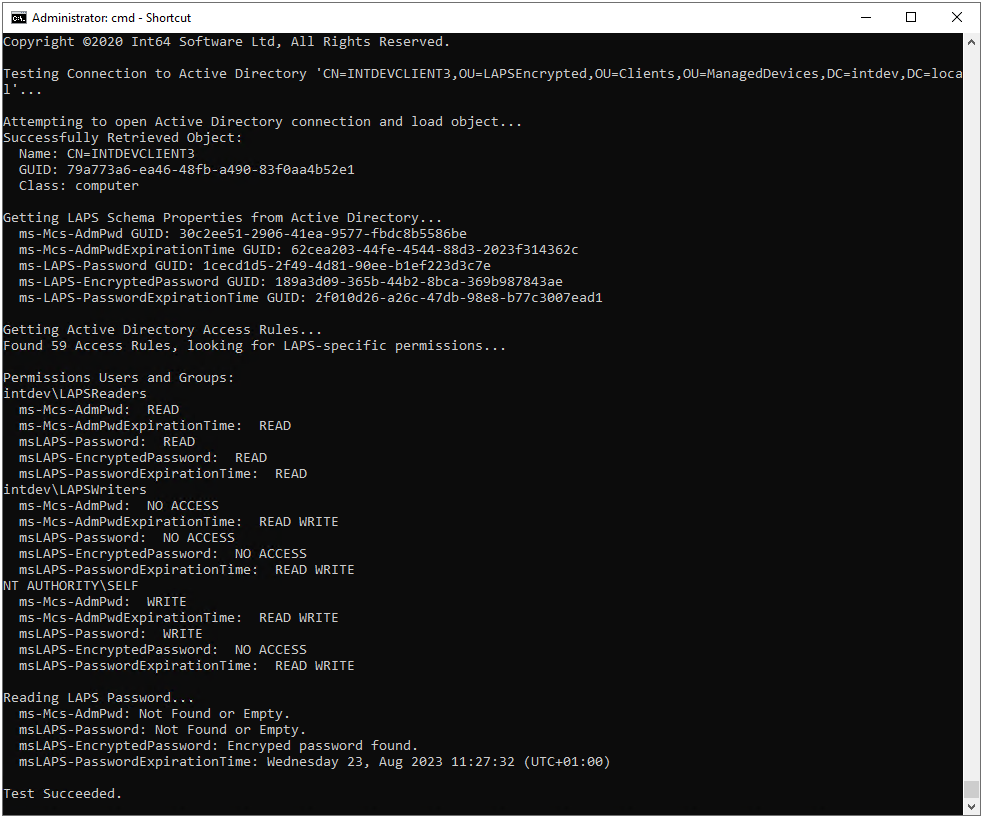
The process followed and problems checked for are:
- Connect to Active Directory and attempt to find the object identified by the provided Distinguished Name.
- Attempt to read schema information about the LAPS properties from Active Directory. If this fails then check that your LAPS installation was successful.
- Get the permissions on the object and search specifically for ones granting read/write permission to the LAPS properties (ms-Mcs-AdmPwd and ms-Mcs-AdmPwdExpirationTime).
- Finally, if the distinguished name is for a computer, attempt to read the LAPS password itself and the expiration time.
If you have any problems with this process, please get into contact with our Support Team for assistance (see Contacting our Support Team).
Multi-Domain Permissions
In multi-domain environments, the LAPS permissions will need to be applied to each domain.