
If you have configured an email server (see Email Server Configuration) then the Notifications system becomes available. When this happens, a new button will appear in each container.
Clicking this brings up the Manage Notifications window where you can set or remove what notifications you want to receive and how often.
Note that in order to setup notifications on a container, a user must have permission to read the passwords in that container (with or without Authorisation).
Triggers
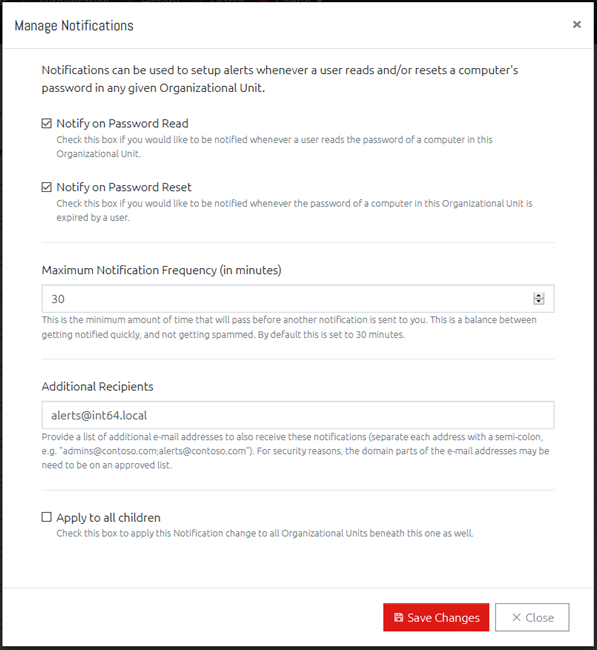
You can have notifications sent to you when anyone reads the password of a computer in this Organisational Unit, expires a password, or both.
Maximum Notification Frequency
Setting the Maximum Notification Frequency will prevent you receiving a notification every time one of these actions happens. Instead they will be grouped together and only sent at the specified frequency.
Additional Recipients
If you want other people to receive these notifications as well, or want them sent to a distribution group, then you can add additional email addresses here separated by a semi-colon (;).
If the Restrict Recipient Domains setting has been defined in Email Settings (see Email Server Configuration), then any email addresses here must be a part of the domain(s) listed in that setting. This is designed to prevent data from leaving your domain unintentionally.
Apply to all children
Finally, you can opt to also apply these notification settings to every Organisational Unit under the currently open container by checking the “Apply to all child containers” box. This will only apply to containers that you already have permission to access.