
You can edit users in one of two ways:
Editing Users One at a Time
Click the user or group name in the list to access a dropdown allowing you to view or modify various settings for that user.
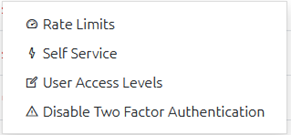
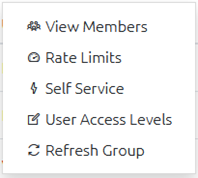
Both Users and Groups have options for editing the Rate Limits (see here), Self Service Computers (see here) and User Access Levels (see here); Groups also have menu options for “View Members” to see what users appear in the group, and “Refresh” Group to have the group updated.
If a user has Two Factor Authentication enabled, you will also see the option “Disable Two Factor Authentication” which can be used to disable this for the user in case they become locked out of their account.
Editing Multiple Users/Groups at the Same Time
Select one or more users or groups by checkbox next to their entry in the user list, then click the Edit User button to edit the Rate Limits, Self Service Computers and User Access Levels for all of them at once.
When you edit multiple users at the same time, the edit window will have an additional Selected Users dropdown that you can use to confirm which users you have selected and toggle them off to exclude them from the edit operation if desired.
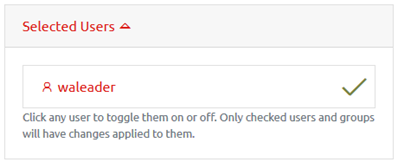
Clicking a user will deselect them, and any changes made when clicking Save Changes will no longer apply to them. Clicking the user again will re-select them, including them in the edit operation again.