
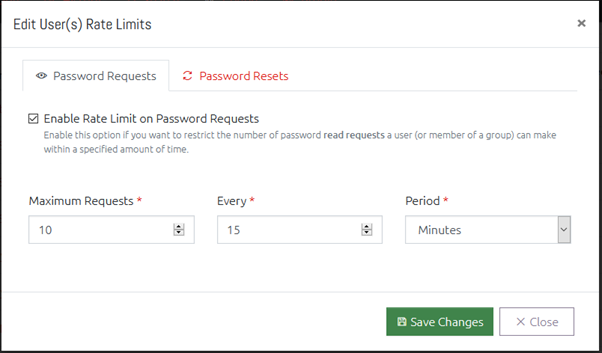
You can set a limit on users and groups which controls how many: a) Password Read Requests, and b) Password Expirations or Resets, those users can perform in a given time period.
This can be useful to prevent over-exposure of your Local Administrator passwords, and to prevent a user from mass-exporting them.
Password Request limits and Password Reset limits can be controlled independently. To set a limit:
- Click the checkbox to Enable the limit you want to impose (use the tabs to switch between Password Requests and Password Resets),
- Specify a maximum number of requests (Maximum Requests/Resets) that can be performed in a specific time frame,
- Specify the time span and period that this will be monitored over,
- If the user attempts more than the maximum requests in the given time period, they will be blocked until that time period has passed.
For example, for a normal user you may want them to stay under 25 requests per day, so you would set it to:
Maximum: 25, Every: 1, Period: Day.
A warning note on group memberships
In order to handle multi-group membership in an efficient and minimally complex way, there is an important point to remember: where a user is a member of multiple groups, each with its own distinct rate limit, OVERLAPS will select the lowest value from each of the rate limit time periods and the number of requests.
This means if you have a group with a limit of 5 requests every day, and another with a limit of 25 requests every 10 minutes, a member of both groups will end up with the limit 5 requests every 10 minutes (5 being the lowest value from the former, and 10 minutes being the lowest from the latter).
This is done to be in-line with least privilege best practices. If the need arises to override the rate limit a user is experiencing because of their group memberships, the correct way would be to add the user explicitly to OVERLAPS’s Users and Groups section, as explicit user settings always take priority over group memberships.